Fix refurbished laptop trackpads on ThinkPad and Latitude
Practical fixes for flaky trackpads on refurbished ThinkPads and Latitudes. Start with quick Windows checks, then drivers and BIOS, and know when to replace.
On this page 8 sections
- Key takeaways
- Quick fixes for a laggy or dead trackpad
- Install or roll back the correct touchpad driver
- Update BIOS and system firmware before replacing parts
- When a hardware fault is likely
- Decide: return, repair, or replace the touchpad
- How hard is a Latitude or ThinkPad touchpad replacement
- Post-fix checks and buying tips to avoid repeats
This refurbished laptop trackpad problems thinkpad latitude repair replacement guide gives you a clear order of operations: confirm settings, install the vendor driver, update BIOS, then decide return vs repair using the service or maintenance manual.
Key takeaways
- Start with software: confirm the touchpad is enabled in Windows and, if it used to work, try a driver roll back or install the correct vendor driver, then restart, as Lenovo support explains.
- Apply BIOS and firmware updates before opening the laptop, per Lenovo’s Hardware Maintenance guidance, and only replace parts after software steps fail. See the ThinkPad Hardware Maintenance Manual.
- On many Dell Latitudes, touchpad replacement is involved and requires removing the top assembly and keyboard, disconnecting the touchpad cable, then unscrewing the bracket, per the Latitude service manual.
- If lag is intermittent, rule out drivers first. If clicks fail or the cursor moves by itself, suspect a physical fault and plan for repair or return.
- When buying refurbs, ask for proof that USB C ports work and request a battery health readout to avoid common frustrations that stack with trackpad problems.
Quick fixes for a laggy or dead trackpad
If the cursor is jumpy or unresponsive after unboxing a refurb, begin with settings. Lenovo’s guidance for ThinkPads says to first make sure the Touchpad is turned On in Windows settings and to restart after changes. You can follow that advice here by checking the Windows touchpad toggle, then testing again. The same basic check applies on Latitudes.
If the touchpad used to work and then got flaky, try software steps before anything else. Lenovo support recommends rolling back the touchpad driver if the problem started after an update. If the driver is missing or clearly wrong, download the correct package from the manufacturer and restart Windows after installing.
Intermittent lag is a common complaint with refurbs. As one ThinkPad owner on r/thinkpad put it, "the trackpad gets laggy randomly". Start with the steps above because they are quick and cost nothing.
Install or roll back the correct touchpad driver
Why drivers matter
Vendors package touchpad drivers to match their firmware. Dell labels its Touchpad driver a recommended driver and notes that touchpad drivers help the device communicate with system firmware. You can see that on Dell’s driver page. A generic Windows driver may work poorly, which shows up as lag, missed clicks, or stuttering gestures.
What to do on a ThinkPad
Follow Lenovo’s order of operations. If the touchpad once worked, try a driver roll back. If the driver is missing or you installed Windows clean, get the proper touchpad driver from Lenovo support for your exact model, install it, then restart, as described in Lenovo’s touchpad troubleshooting article.
What to do on a Latitude
Use Dell’s model support page to install the recommended Touchpad driver. Avoid relying on Windows Update alone. After installation, reboot so the driver can initialize with the system firmware, which is how Dell describes its purpose on the Touchpad driver listing.
Update BIOS and system firmware before replacing parts
Manufacturers expect technicians to finish software and firmware steps before opening the chassis. Lenovo’s ThinkPad Hardware Maintenance Manual instructs to install all software fixes, drivers, and UEFI BIOS updates before replacing Field Replaceable Units, and to reinstall the original FRU if a swap does not fix the issue. That workflow is documented in the ThinkPad 13 Hardware Maintenance Manual.
Apply that mindset broadly. Update chipset and input drivers, then update BIOS from the vendor’s support page for the exact model. Only move to hardware once those are done and tested.
When a hardware fault is likely
Software can cause lag, but certain symptoms point to a physical problem. Obvious signs include a dead click, a pad that does not register any input even in BIOS or during Windows Setup, or a cursor that drifts when the pad is untouched. Physical damage on the palm rest, prior liquid exposure, or a pad that tilts or feels loose are also strong signals.
Consider the overall condition too. Some refurbs arrive with other issues that make daily use frustrating. One buyer on r/laptops reported that the "battery health was at 38%", and another ThinkPad owner noted, "One of the USB C ports is jalso ust missing". Trackpad fixes can be done, but if multiple essentials are degraded or missing, a return or exchange might be the better path.
Decide: return, repair, or replace the touchpad
Use this simple order. First, finish settings, drivers, and BIOS. Second, test the pad on AC power and on battery, and confirm clicks and gestures in Windows after a reboot. Third, if the problem persists and the laptop is still within a return window, weigh an exchange against the time and risk of a hardware repair.
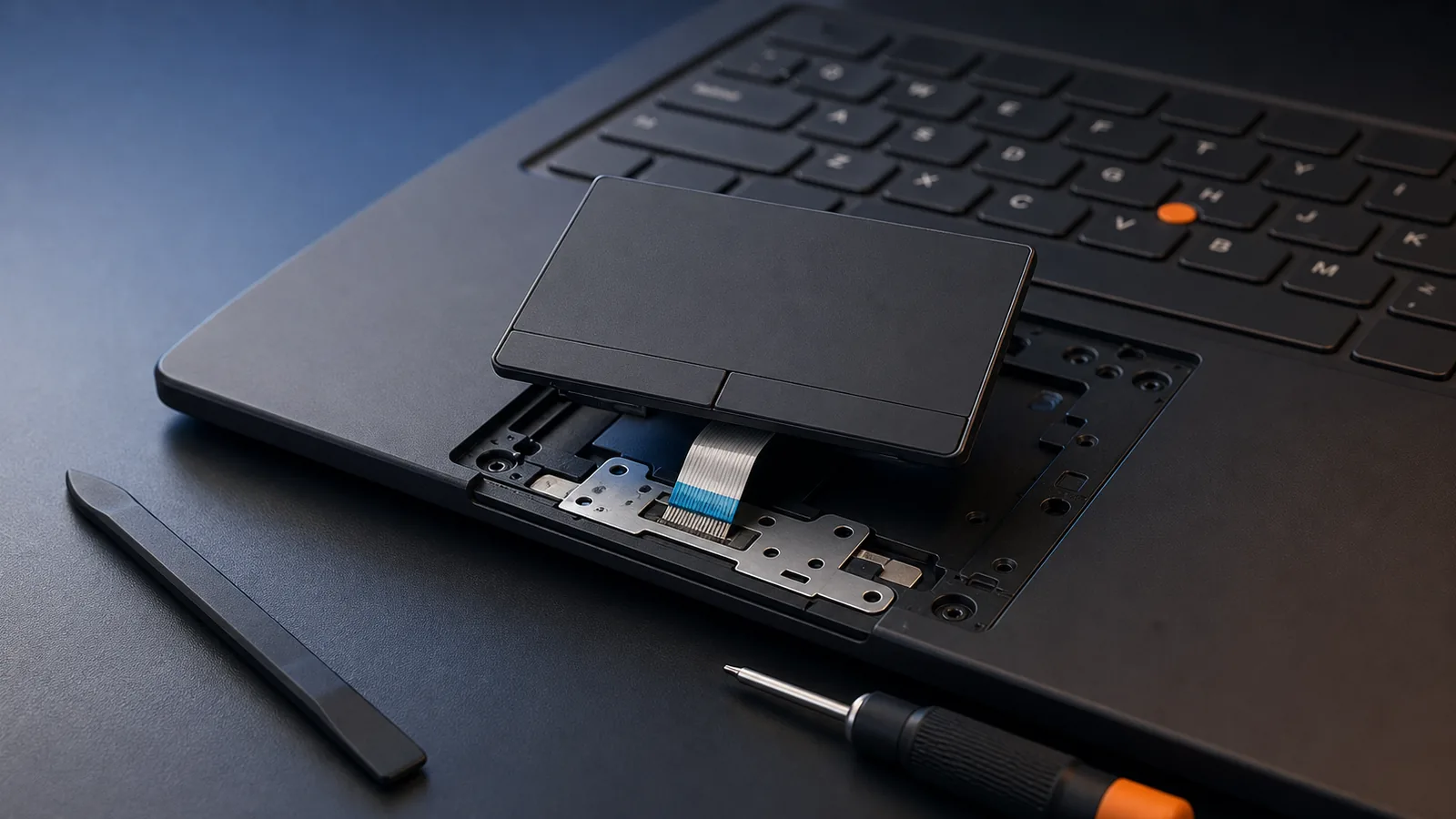
If returning is not practical, plan a repair. On many models the touchpad is part of, or mounted under, the palm rest. That usually means disassembling the top side of the laptop. Read the vendor service or maintenance manual for your exact model before you commit.
How hard is a Latitude or ThinkPad touchpad replacement
Latitude example
Dell’s Latitude service manual describes the steps as removing the top assembly and keyboard first, then disconnecting the touch pad connector, and finally removing the touch pad screws and touch pad bracket. That sequence is spelled out in the Latitude service manual. Budget time for careful disassembly and for adhesive or brackets that need to be transferred.
ThinkPad approach
ThinkPads use Field Replaceable Units and Lenovo’s process is to exhaust software fixes and updates before replacing parts. If a replacement does not resolve the issue, Lenovo says to reinstall the original FRU. See the procedure guidance in the ThinkPad Hardware Maintenance Manual. Expect routing a flat cable, securing the bracket, and reassembling the keyboard and palm rest assembly.
For either brand, take photos as you go, keep track of screws and brackets, and protect the touchpad cable and connector. If any step feels beyond your comfort level, stop before damage turns a small fix into a larger one.
Post-fix checks and buying tips to avoid repeats
Post-fix checks
After any change, restart Windows. Confirm tap to click, two finger scroll, and right click work. In Windows settings, adjust sensitivity and palm rejection if the pointer jitters during typing. Test on AC and on battery, since portable use is where issues feel worst.
Buying tips for next time
- Ask the seller for a short video that shows the cursor moving smoothly, two finger scroll, and a right click menu opening. This proves the pad and buttons work under load.
- Request photos of the palm rest from multiple angles so you can spot cracks, warping, or misaligned seams that hint at a rough prior repair.
- Confirm that all USB C ports are present and functional, since missing or broken ports make charging and docking a headache. If needed, use our page on battery, trackpad, and usb-c problem fixes to plan checks.
- Ask for a battery health readout or runtime evidence so a weak pack does not compound input lag frustrations on the go. If you are vetting a listing, our safe refurb buying and scam checks can help spot bad sellers.
- If the plan includes some gaming, review gaming readiness, heat, and throttling so performance and thermals match expectations.
- Confirm Touchpad is On and test in BIOS or Windows Setup if possible.
- Roll back or install the vendor touchpad driver for your exact model, then reboot.
- Update BIOS or UEFI and any related firmware from the model support page.
- If still failing, test on AC and on battery, then decide return vs repair and consult the service or maintenance manual.
Questions people ask
How do I quickly tell if my refurbished laptop’s trackpad issue is software or hardware?
If the pad works in Windows Setup or immediately after a clean boot then fails after updates, suspect software and drivers. If clicks never register, the cursor drifts when untouched, or the pad feels loose or uneven, suspect a hardware fault.
Should I install generic Windows touchpad drivers on a ThinkPad or Latitude?
Use the vendor’s driver for your exact model. Dell calls its Touchpad driver a recommended driver and says it helps the pad communicate with system firmware, which a generic driver may not do as well.
Do BIOS updates really help trackpad issues on ThinkPads?
Lenovo’s Hardware Maintenance guidance is to install all software fixes, drivers, and UEFI BIOS updates before replacing parts. Follow that order before opening the laptop.
What does a Latitude touchpad replacement involve?
Dell’s Latitude service manual says to remove the top assembly and keyboard, disconnect the touch pad connector, then remove the touch pad screws and bracket. Plan accordingly.
If a replacement touchpad does not fix the problem, what next on a ThinkPad?
Lenovo’s Hardware Maintenance Manual says to reinstall the original FRU if the replacement does not resolve the issue. Recheck drivers and BIOS after reverting.